Add OpenISD as an app
You do not need to. Like WinISD, OpenISD works offline once you have opened it, straight from the browser. Adding it as an app only gives it its own window and an icon in your Start menu, dock or home screen.
Both the desktop and the mobile version install the same way. Open openisd.app first, then:
Chrome or Edge on Windows, Linux and ChromeOS
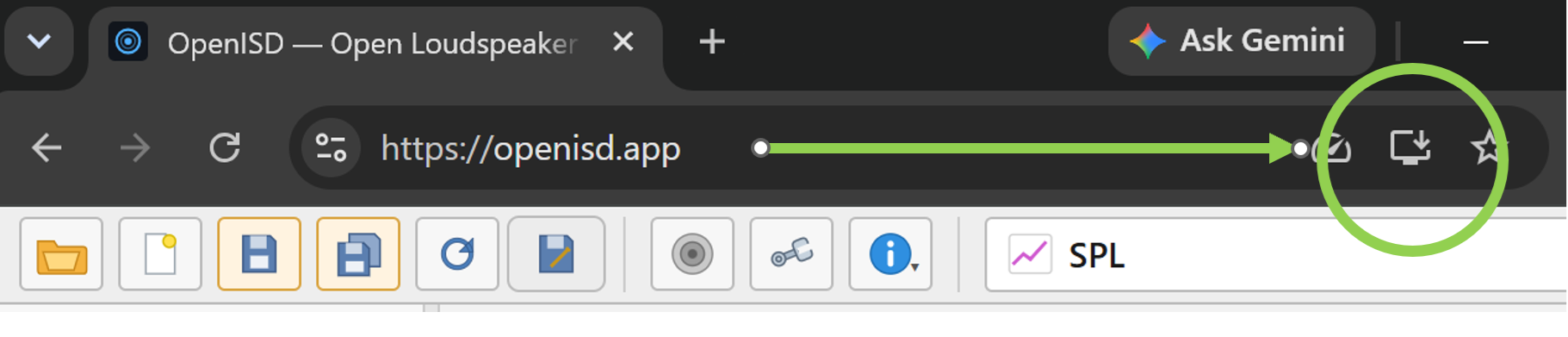
- Click the install icon at the right end of the address bar (ringed below), then Install.
- Or open the browser menu (three dots) and choose Install OpenISD (Chrome: under Cast, save and share; Edge: under Apps).
Chrome on Android
- Open the menu (three dots) and choose Install and create shortcut, then Install.
Safari on iPhone and iPad
- Tap the Share button, then Add to Home Screen.
Safari on Mac
- Choose File, then Add to Dock. Needs macOS Sonoma or later.
Firefox
- Firefox on a computer cannot install web apps. Keep OpenISD in a tab or a bookmark; it still works offline.
Menu names change between browser versions. If you do not see an install option, look for "Install", "Add to Home Screen" or "Add to Dock". The app updates itself whenever you are online.